
Fix a full mailbox
A storage warning, fixed in about five minutes. Follow the numbered steps below.
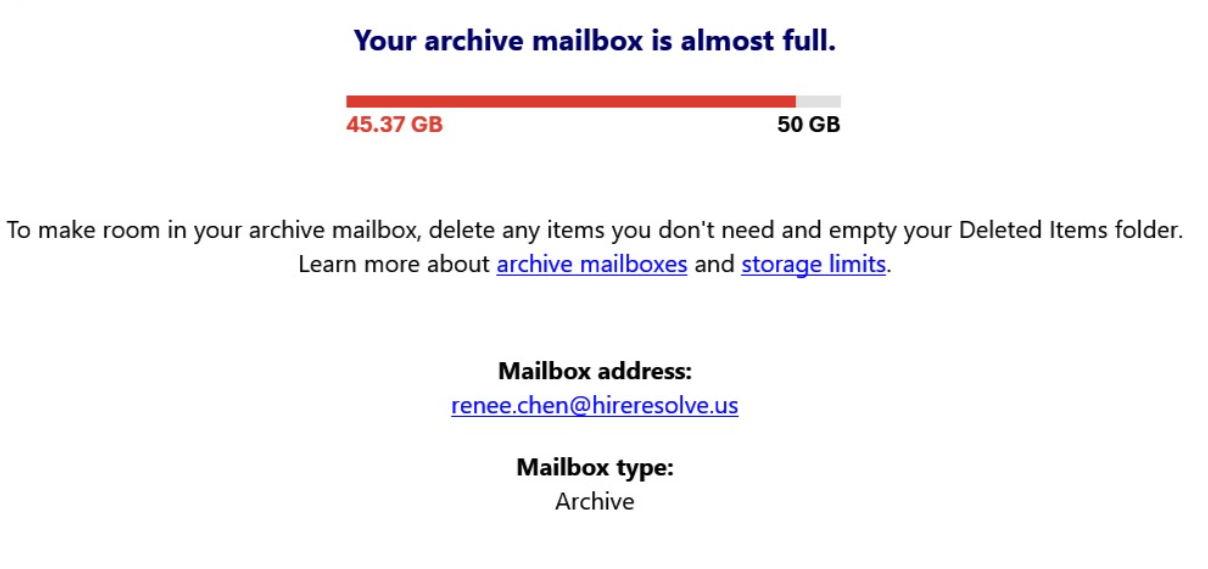
Your warning is about one of two things: your main mailbox (Inbox, Sent Items) or your archive mailbox (older mail in separate storage). Both are fixed the same way — you'll choose which one in step 2.
Its storage menu is confusing to navigate. Open outlook.office.com in your browser instead — the steps below match it exactly.
Clear space
Click the gear icon (top right) → Accounts → Storage. If you don't see Storage under Accounts, check under General instead.
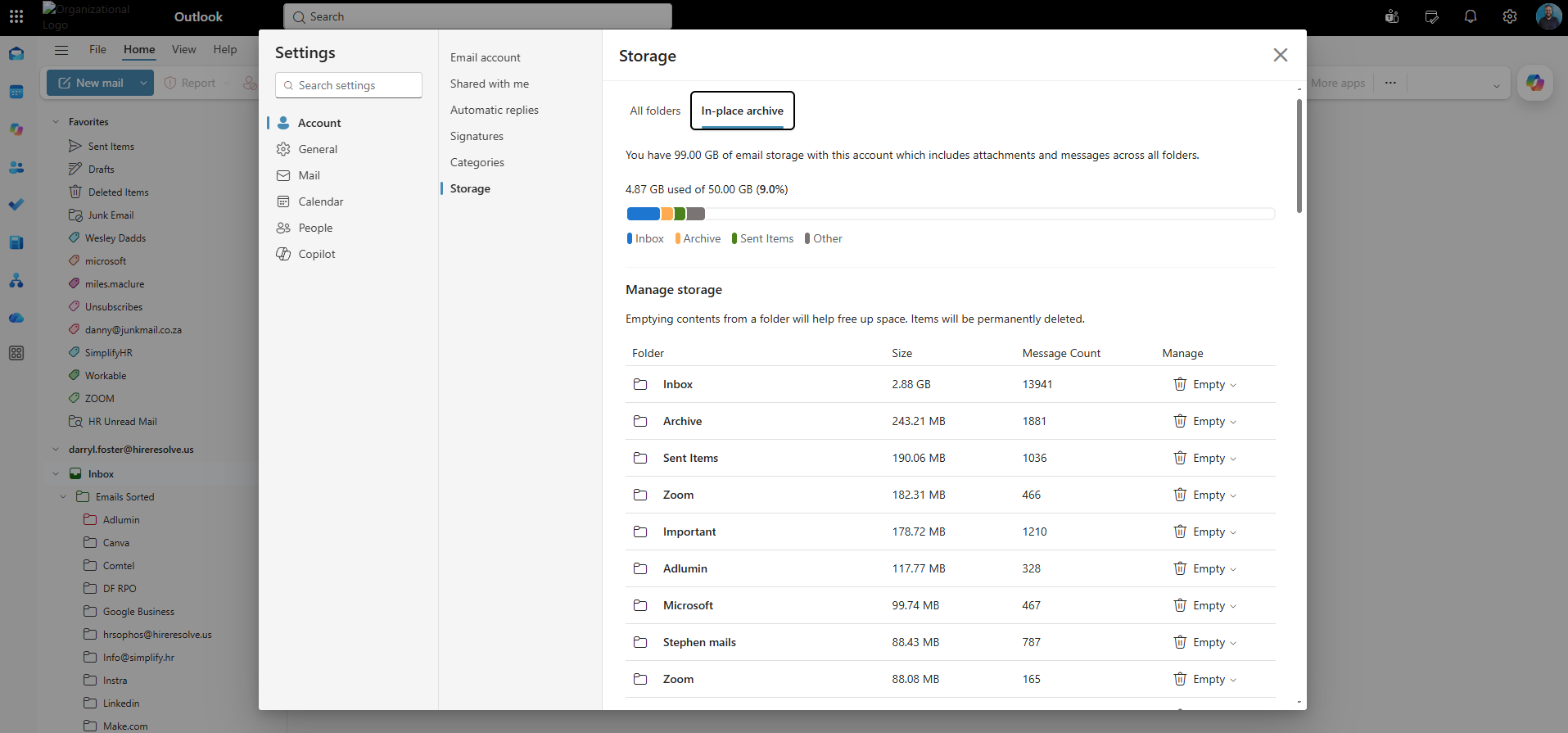
Two tabs sit at the top of the Storage screen:
All folders
Your main mailbox. Pick this if the warning didn't mention "archive."
In-place archive
Pick this if the warning specifically says "archive mailbox."
Expand Archive in the left folder pane instead, and apply the same steps to Archive/Inbox and Archive/Sent Items.
Every option here permanently deletes and frees space immediately — none of them move mail to Deleted Items first. They differ only in what they remove:
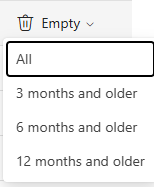
As soon as you confirm, the mail is gone for good and your storage number drops right away. Double-check you've picked the right folder and the right option before confirming.
It doesn't check the date at all — it empties the whole folder, including anything you received five minutes ago. Only use "All" on folders like Junk or Spam where you're certain you don't need anything kept. Avoid it on Inbox or Sent Items — use a time-based option there instead.
A reasonable default: 3 months on Inbox, 6 months on Sent Items. The storage meter usually updates within a few minutes.
Mail you delete the normal way — one at a time, using the delete key — goes to Deleted Items first, and it still counts against your quota until that folder is cleared too. Go back to Storage, select Deleted Items (or Archive/Deleted Items), click Manage, and apply the same options there.
Still showing as full?
If you've cleared Deleted Items and used the Manage options above but the warning persists, the remaining space is a hidden Recoverable Items folder — only IT can clear it.
Send your helpdesk this:
Ask IT about an auto-archive policy, so old mail is moved or deleted automatically.
Quick reference
